How to Create a Collapsible FAQ Accordion in SharePoint Online
Creating a collapsible FAQ accordion in modern SharePoint is essential for making your content accessible, engaging and user-friendly. In this comprehensive guide, we’ll simplify the process of creating one in SharePoint Online into clear, actionable steps.
We’ll concentrate on using the Accordion by Sprocket 365, a SharePoint extension, to facilitate the process. This guide is designed for everyone, from experienced SharePoint developers to those new to Microsoft 365. It provides the necessary knowledge and tools to efficiently create collapsible accordions for your FAQs.
What is a collapsible FAQ accordion?
Commencing with an overview, a collapsible FAQ accordion is a dynamic element, ideal for structuring content in a compact and interactive way. Primarily used for FAQ sections, it allows SharePoint users to click on a question to reveal or hide the answer.
Most importantly, this feature not only saves space on your site pages but also enhances the user experience by providing a clear and organised format.
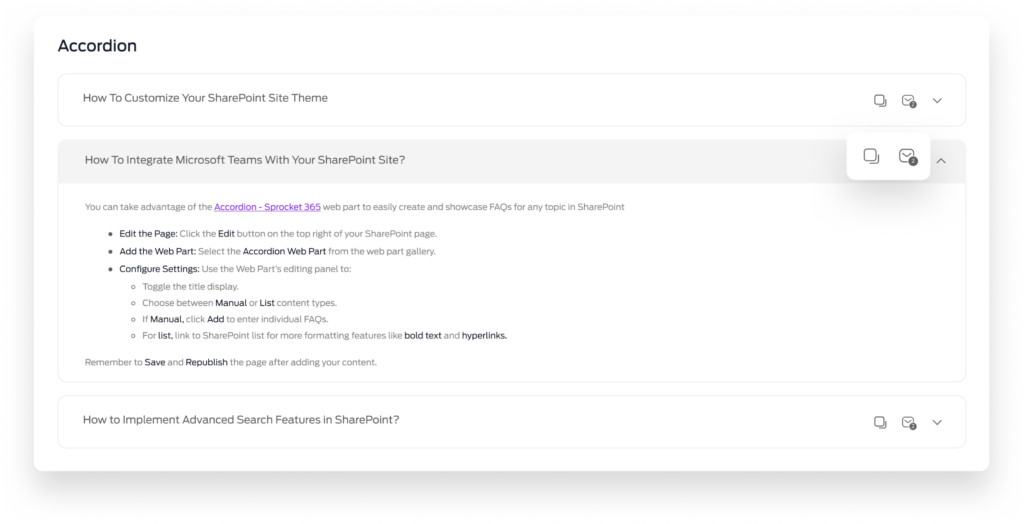
Benefits of using an Accordion Web Part?
Firstly, FAQ accordions are an excellent solution for managing content on site pages without cluttering the page. By collapsing and expanding as needed, they allow for a large amount of information to be stored in a minimal space.
This efficient use of space is particularly beneficial for mobile users, who navigate smaller screens, and for sites with extensive information that needs to be accessible yet not overwhelming.
Secondly, accordions make information discovery more interactive. When users click to expand an answer, it creates an engaging experience, encouraging them to explore more content. This interactivity keeps users on the page longer, enhancing their overall experience.
Additionally, the accordion format can make a SharePoint page look more organised and professional, contributing positively to the user’s perception of the site.
Lastly, FAQ accordions streamline the delivery of information by allowing users to find answers to specific questions quickly. Users can easily navigate through questions without scrolling through large blocks of text, making the process more efficient.
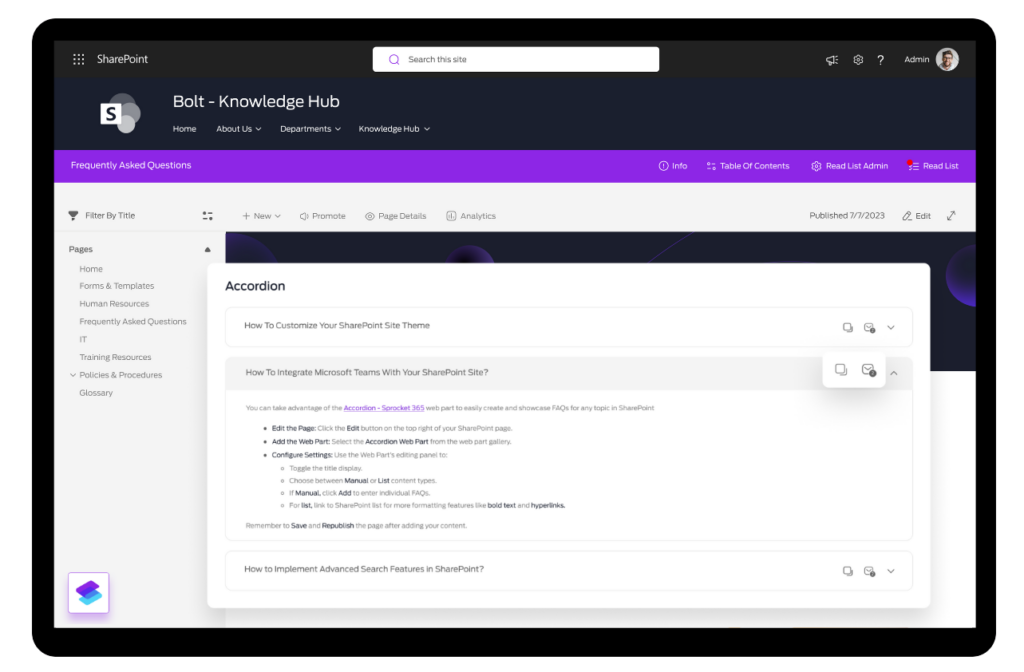
Accordion Web Part by Sprocket 365
The Accordion Web Part by Sprocket 365 offers a quick and easy solution for creating collapsible FAQ lists in SharePoint, ready for immediate use right out of the box.
This tool simplifies navigation by eliminating lengthy page scrolls, allowing users to quickly access information in relevant sections with just a click. Accordion comes as a pre-built web part; simply enter the accordion items, and it automatically generates an accordion-style list in SharePoint.
Here’s a summary of the Accordions key features:
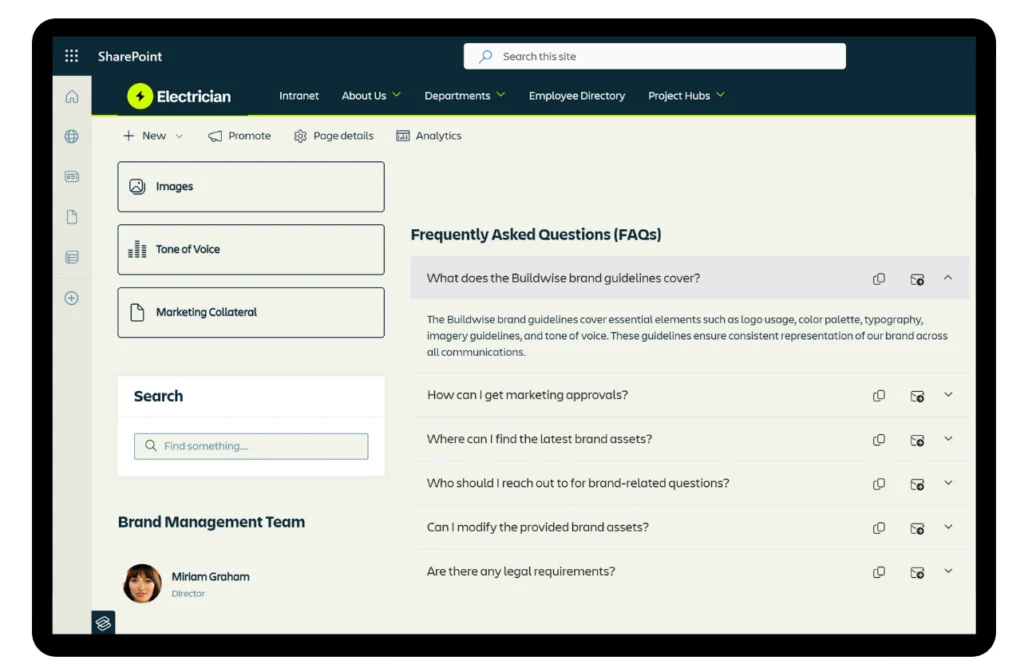
How to create a collapsible FAQ accordion with Sprocket 365
In this section, we’ll show you how to set up a swift solution for adding an FAQ accordion to a SharePoint page, making the process quite straightforward with Sprocket 365. Sprocket not only simplifies the creation of an FAQ accordion but also offers a ready-to-use Web Part.
Here’s a step-by-step guide on how to use the Accordion Web Part, configuring a list manually inside the settings panel.
Step 1: Add Web Part
Firstly on your SharePoint page, Edit the page and Add a new section and select the Accordion Web Part by Sprocket 365. This will create the container for your FAQs.
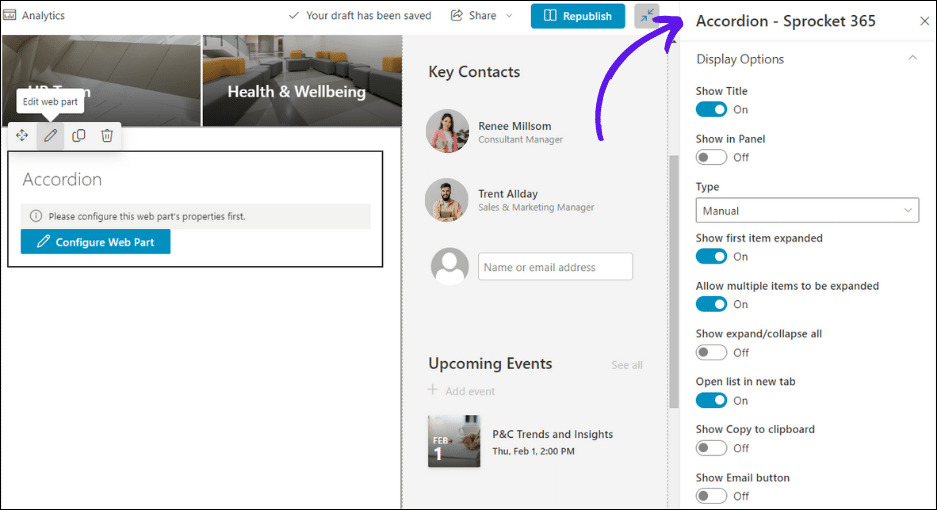
Step 2: Edit Web Part Properties
Click the Edit pencil to access the Web Part Properties. Here, you can opt to show or hide the title, and decide if you want the accordion in a panel.
Choose Manual to input FAQs directly into the Web Part or List to pull FAQs from a SharePoint list which allows for more formatting options like hyperlinks and colours.
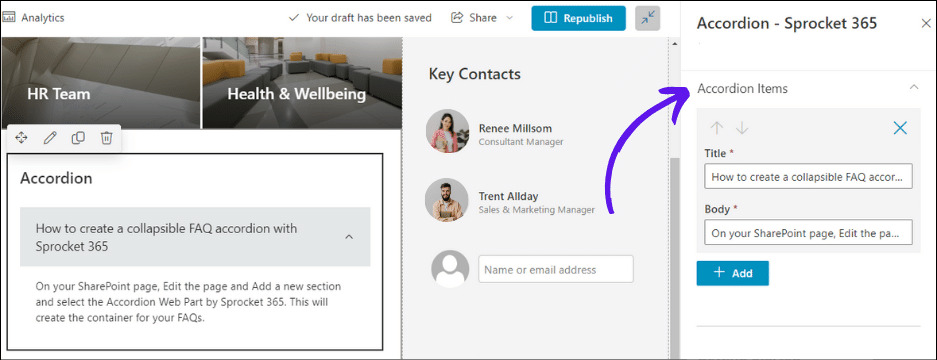
Step 3: Add Accordion Items
If you chose Manual, click Add to input the title and body for each FAQ. For List, go to your FAQ list and add new items with their answers and formatting.
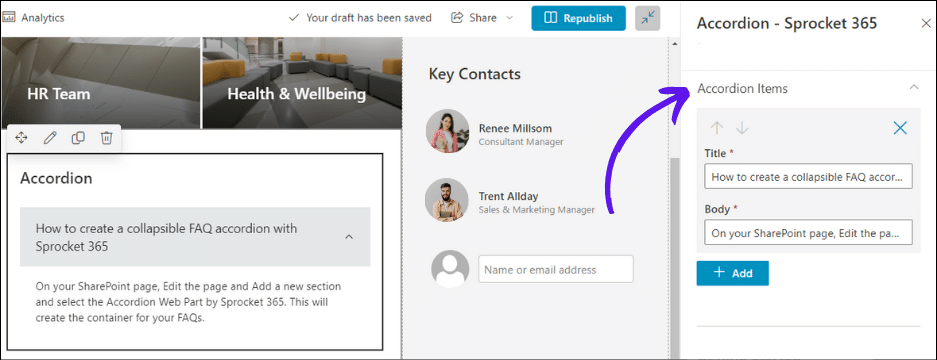
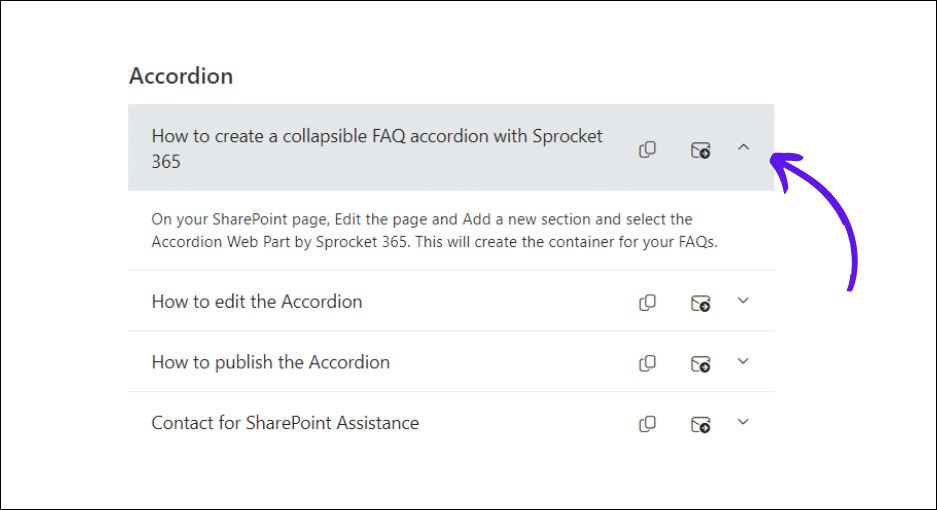
Decide if you want the first item expanded by default, allow multiple items to be expanded, and if you want to show ‘Expand/Collapse All’ buttons. You can also add buttons for copying FAQs to the clipboard or sending them via email.
Step 4: Publish Site Page
Once your FAQs are set up and formatted click Publish, to make them live. You now have an FAQ list set up inside the Accordion Web Part on SharePoint Online.
What else can you do with Sprocket 365?
In conclusion, Sprocket 365 is more than just a tool to create accordions in SharePoint – it’s a complete solution which enhances SharePoint Online, offering businesses a simplified way to customise their digital workspaces.
Let’s explore some of the key things you can do with Sprocket 365.
Suite of SharePoint Framework (SPFx) Web Parts is designed to enhance the functionality of SharePoint, offering new design possibilities. Explore our Web Parts here.
Effortlessly set up a Knowledge Management Hub in SharePoint. Sprocket 365 gives you tree branch navigation, read lists and robust security features for effective knowledge management, ensuring secure access for authorised users.
Transform way your organisation navigates employee information with our Directory and Org Chart. Seamlessly integrated with Microsoft Teams, this feature draws real-time data from Active Directory (Entra), providing an up-to-date employee information in SharePoint.
Enhance your SharePoint interface effortlessly with our customization tools. Tailor it using CSS or JavaScript for a unique look, applying your own branding and themes to align with your organisation’s unique identity.
Try Sprocket 365 for free
Get started for free, available to try in the Microsoft App Source. Sign up for a 14-day free trial and discover how effortlessly you can transform your SharePoint site into a more organised, engaging and efficient workspace.
Start your free trial today and try out Accordion by Sprocket 365.