How to Create a Knowledge Base in SharePoint (with Read Tracking)
Most organisations already have the raw material for a knowledge base sitting in SharePoint — policies, procedures, onboarding guides, safety documents. What they don't have is a way to turn that pile of documents into something people can navigate, trust, and be held accountable to reading. A document library is storage. A knowledge base is a system.
This guide walks through building a proper knowledge base in SharePoint Online with Sprocket 365 — including using Read Lists to track compliance. If you're specifically after a wiki-style page tree, our companion guide Create a SharePoint Wiki covers that ground with real site examples; this article focuses on the knowledge base as an authoritative, trackable source of truth.
What separates a knowledge base from a document dump
SharePoint can store documents, publish pages, and be searched. But a knowledge base needs more than any of those individually:
- A navigable hierarchy — a tree of topics users can browse, not a flat list of files.
- Readable pages — content you read in the browser, not Word files you download.
- Read tracking — proof of who has read which critical document, and when.
- Scoped search and related content — results from within the knowledge area, and links between connected articles.
Sprocket's Knowledge Hub provides all of this. Here's how to set it up.
Step 1: Turn on Knowledge Hub
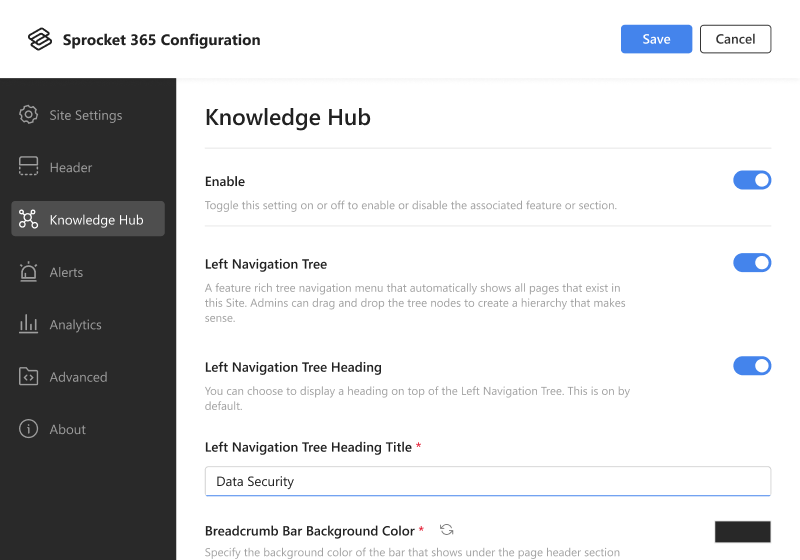
Click the Sprocket Settings icon at the bottom left of your site, open the Knowledge Hub tab, and enable it. This activates the wiki-style navigation and the document conversion and read-tracking tools you'll use in the following steps.
Step 2: Build your navigation tree
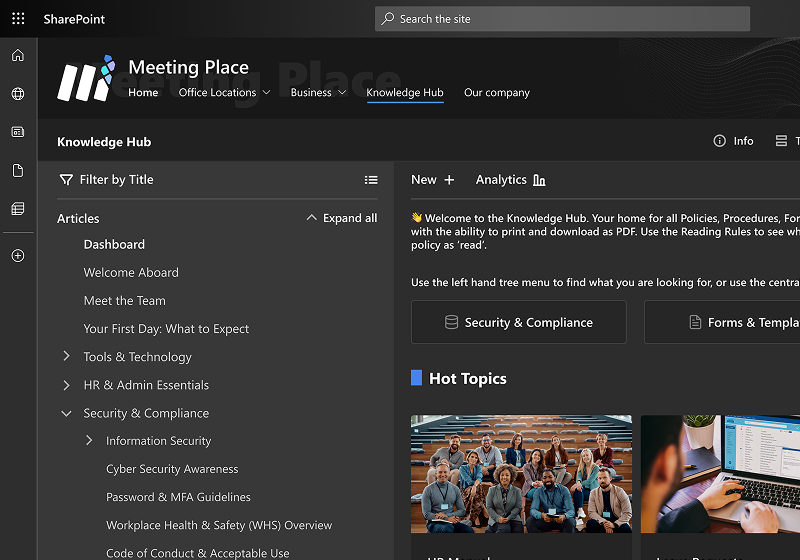
A knowledge base lives or dies by its navigation. Knowledge Hub gives you a hierarchical, wiki-style left navigation that editors manage with simple drag-and-drop. Organise your content into broad categories — HR Policies, IT Procedures, Health & Safety — and nest articles beneath them. Readers get a clean, expandable panel alongside the content, and the tree updates automatically as pages are added, moved, or archived.
Step 3: Bring your existing documents in
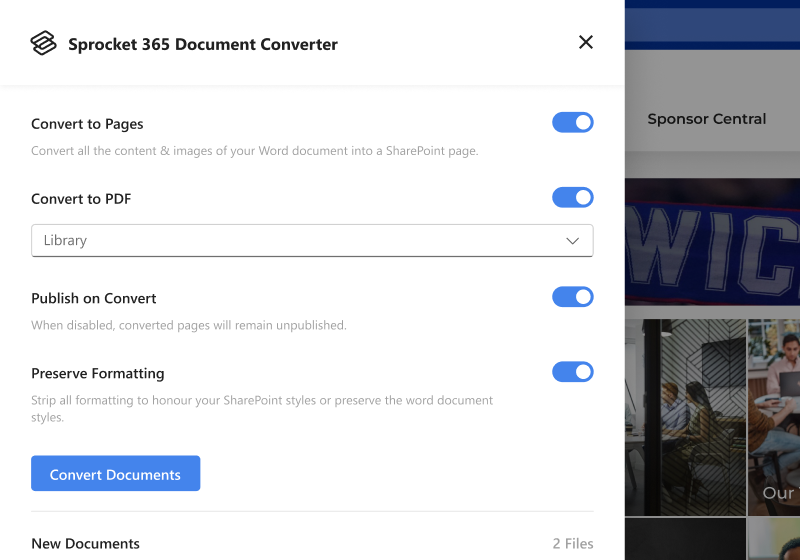
You don't have to rewrite everything you already have. The Document Converter turns Word documents into proper SharePoint pages so they become searchable, readable in the browser, and able to use every Knowledge Hub feature.
- In your document library, select the Word documents you want to convert (or right-click a single file).
- Click Convert Document from the toolbar or context menu.
- Choose your conversion options, then click Convert.
A few options are worth knowing. Remove Formatting strips the original Word styling and applies your site's native design instead — so every converted article looks consistent rather than carrying its author's formatting quirks. Convert to PDF can run alongside page conversion, automatically linking a downloadable PDF on the page. And Publish on Convert lets you publish immediately or save as a draft for review.
Step 4: Track compliance with Read Lists
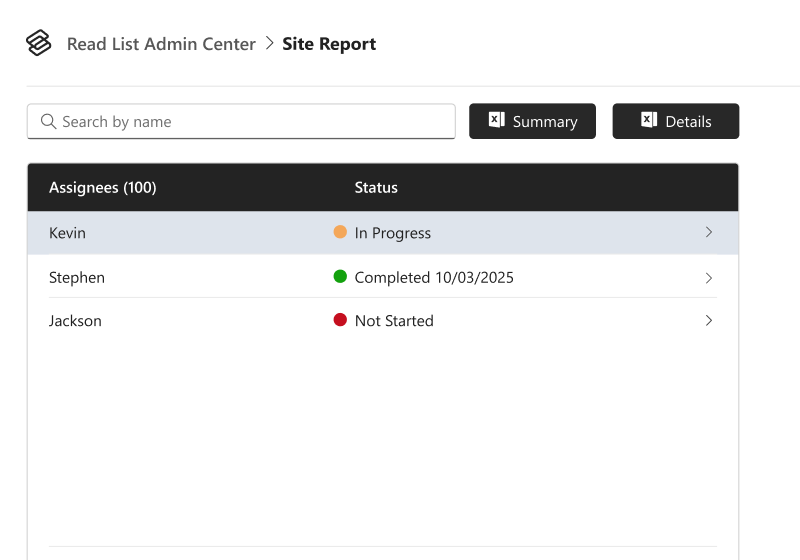
This is what turns a knowledge base into a compliance tool. For policies, safety procedures, and other must-read content, publishing isn't enough — you need to know who has actually read what.
With Read Lists, administrators define which pages must be read by specific users or groups. Each person sees a personalised checklist of the pages they're required to read and acknowledges each one. Where a page has a due date, that deadline shows directly in the checklist so users can prioritise time-sensitive reading. Administrators get a full audit view of completion across the organisation and can send automated reminders to anyone with outstanding items.
To surface this for your users, add the Read Checklist web part to a page:
- Edit the page, click the +, and add the Sprocket Read Checklist web part.
- Set the Query Source to scope it to this site, all sites, or all sites within the hub.
- Optionally turn on Only show unread items and sort by Due Date so the most urgent reading rises to the top.
The result: a self-serve, auditable record of who has read your critical documents — no custom development, no third-party compliance software.
Step 5: Help people find and connect content
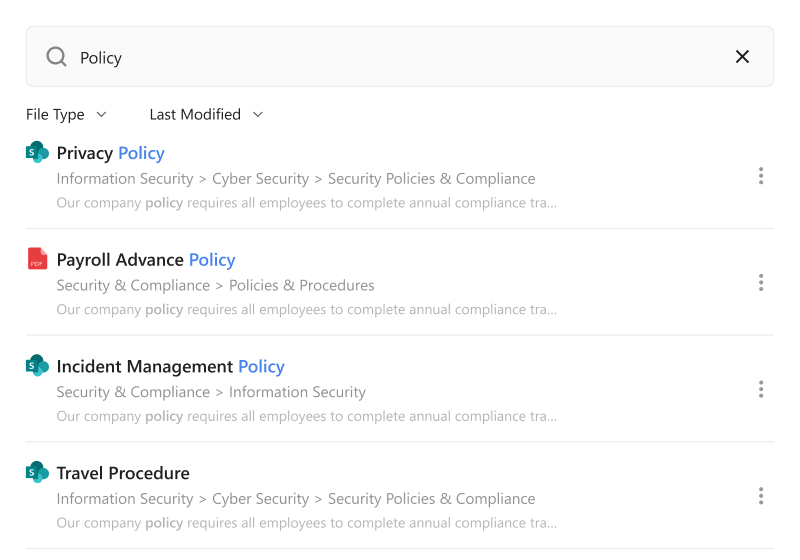
Two finishing touches make a knowledge base genuinely usable. Knowledge Hub's scoped Search returns results from within the current knowledge area rather than the whole tenant, so someone in the HR portal isn't wading through IT articles. And the Related Pages web part surfaces connected articles — reading a policy on expense claims can point to travel booking and approval processes — encouraging people to find everything they need.
Knowledge base or wiki?
The two overlap, and Knowledge Hub powers both. If your goal is collaborative, evolving team pages, start with the wiki guide. If your goal is an authoritative, compliance-ready reference that proves who has read what, the steps above are your blueprint.
Try it for free
Knowledge Hub, the Document Converter, and Read Lists are all included with Sprocket Studio. Start a 14-day free trial from the Microsoft AppSource, or see pricing to plan your rollout.